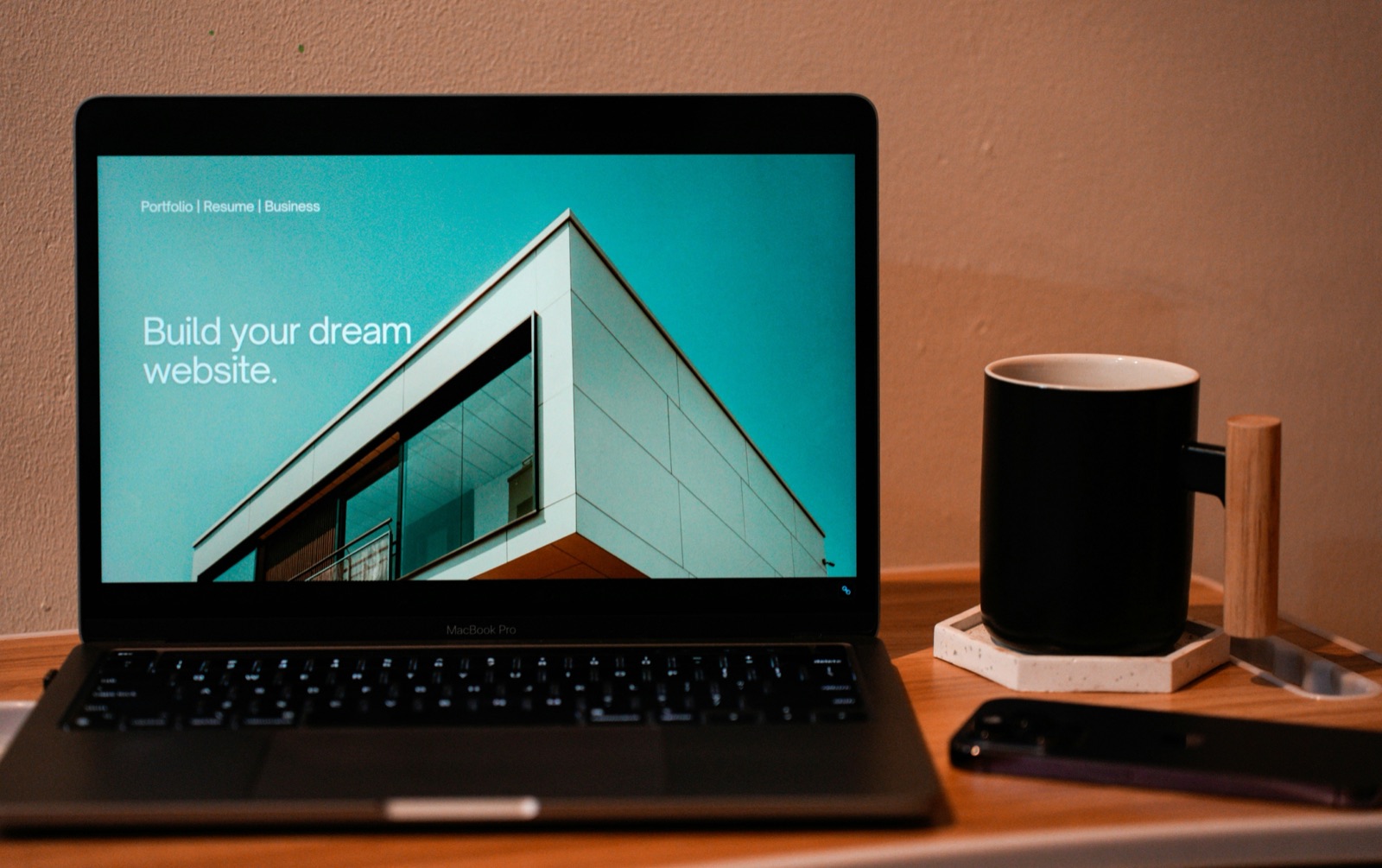
A Framer template is a complete starting point, not a finished identity. Remixing gives you an editable copy in your own workspace so you can change the content, styling, layout, and components without changing the creator's original project.
Start by getting your own copy, then replace the demo material in a deliberate order. This keeps the design coherent while you make it yours.
Get a copy in your Framer workspace
For a free template in the Framer Marketplace, click Use for Free. Framer opens the template and adds a copy to your account. A paid template usually provides a remix link after purchase; open that link to copy the project to your workspace. Use the creator's official link so you know which project you are copying.
Replace the demo content before changing the layout
If the template uses a CMS, check its collection items as well as the visible canvas. Demo entries can otherwise remain in lists or detail pages even after the home page looks complete.
- Update the site name, navigation, buttons, and contact links so every path has a real destination.
- Replace the hero headline and images with your own message and visual material.
- Review every page for sample text, placeholder projects, and unused sections; remove what you will not use.
- Apply a small set of type and color choices consistently instead of styling each section separately.
Check desktop, tablet, and phone layouts
Open Framer Preview with the Play button and resize the viewport. Test the menu, buttons, forms, and any hover effects. A layout that looks balanced at desktop width can need different image crops, text sizes, or spacing on a phone. Review each breakpoint that your template includes and adjust only what needs to change.
Set search and sharing details
In Site Settings, add a clear site title and description. Give important pages their own title and page description in Page Settings, and check their social preview images. Confirm that pages you want discovered are allowed to appear in search engines. These details should describe the content you actually published, not the template's original demo.
Publish and inspect the live result
Click Publish in the top-right corner of the Framer editor. Framer can give the site a framer.app address, and you can connect a custom domain if you prefer. Open the published URL and click through the pages once more; a live check can catch a broken destination or missing asset that was easy to miss in the editor.